
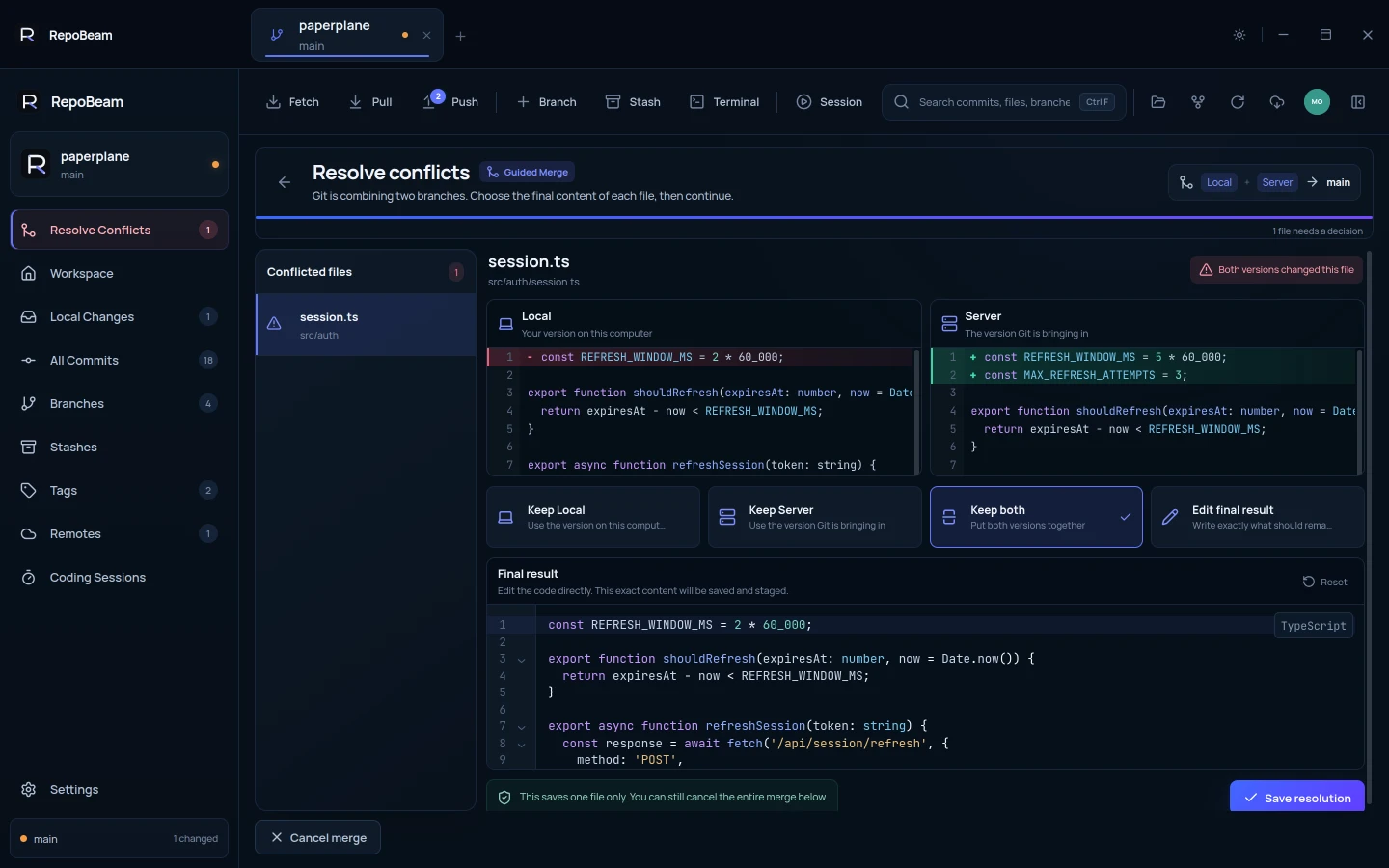
In short
- Conflicts can come from a merge, Fix sync, a cherry-pick, an undo, or restoring a stash.
- Both versions are shown side by side, with where each came from.
- The final result is checked for leftover conflict markers before it is saved.
Step by step
-
Open Resolve Conflicts
RepoBeam opens it on its own when an operation stops, and keeps it at the top of the sidebar until you are done. Select a file.
-
Compare the two versions
Local is your version on this computer. Server is the version Git is bringing in. When you restore a stash, the second side is labelled Stash.
-
Decide
Choose Keep Local, Keep Server or Keep both, or Edit final result to write exactly what should remain.
-
Save the file
Click Save resolution. RepoBeam saves and stages exactly what the final result shows.
-
Continue or cancel
When every file is resolved, continue the operation. To stop instead, cancel it and the branch returns to where it started.
Good to know
- Conflict markersA file can’t be saved while
<<<<<<<,=======or>>>>>>>markers remain. - Binary filesBinary files can’t be combined as text. Choose one complete version instead.
- Take a breakThe operation stays paused until you continue or cancel, so you can come back to Resolve Conflicts at any time.
- StashesA stash that conflicts is kept, so nothing is lost while you decide.