
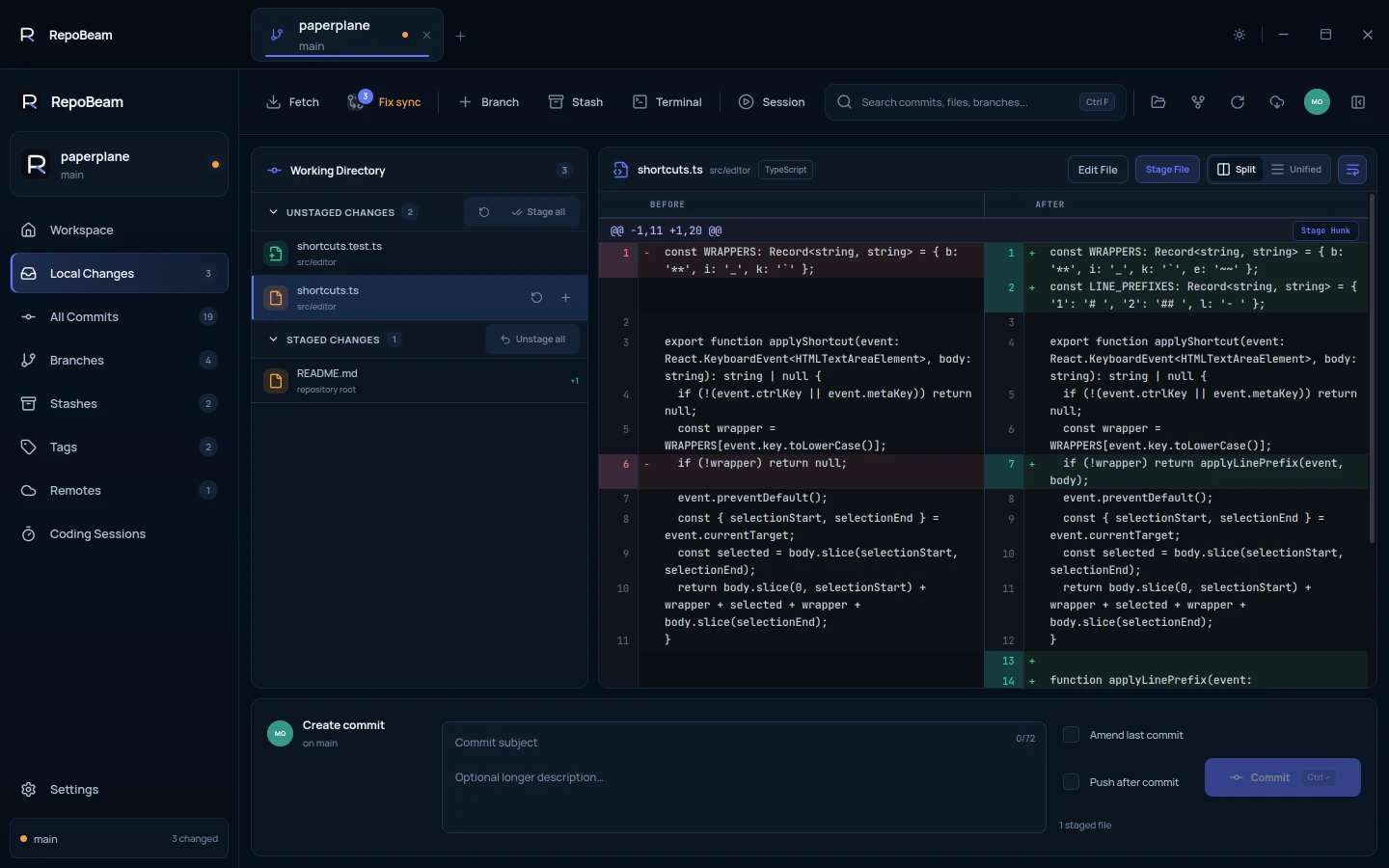
In short
- Stage a whole file, or only one hunk of it.
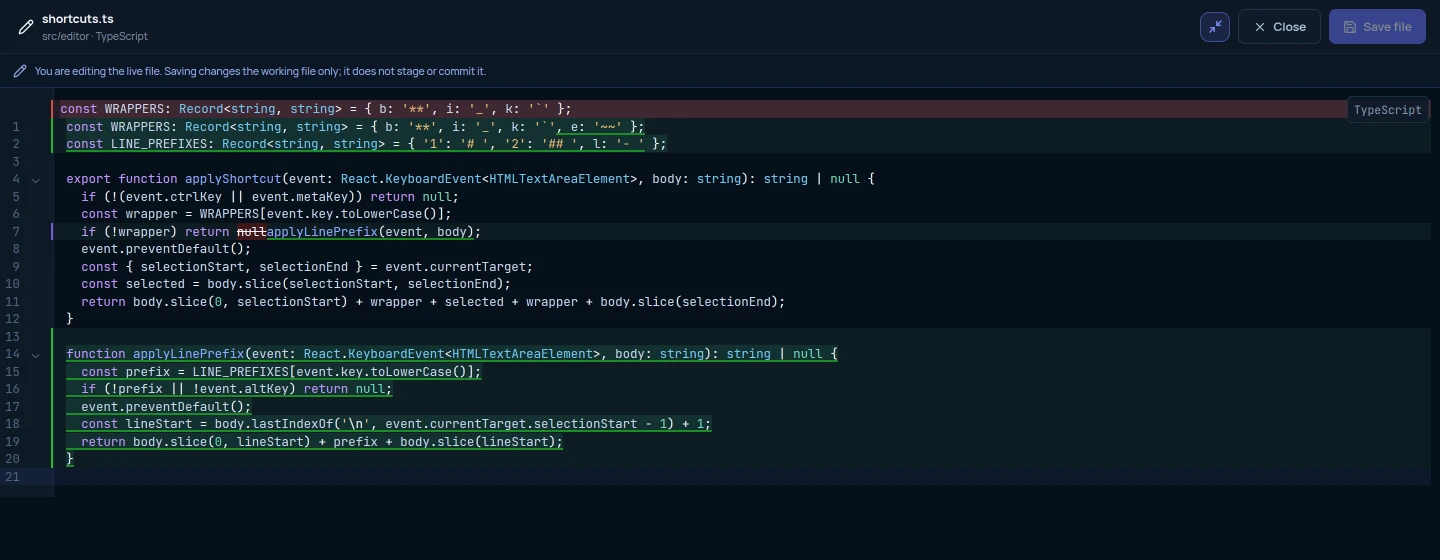
- Edit any file straight from its diff, full screen if you need the room.
- Commit, and push in the same step if you like.
Step by step
-
Open Local Changes
Pick Local Changes in the sidebar. Unstaged and staged files are listed separately. Select a file to see its diff.
-
Stage what belongs together
Click Stage File, or Stage Hunk above a single block of changes. Stage all and Unstage all work on the whole list.
-
Fix something in place
Click Edit File to open the file in the editor. The full screen button gives it the whole window, and Escape brings it back without losing your edits. Save with Ctrl S.
-
Commit
Write a short subject, and a longer description below it if you need one. Tick Push after commit to push straight away, then click Commit or press Ctrl Enter.
Good to know
- Right-click a fileStage or unstage it, edit it, copy its path, show it in its folder, or ignore a new file.
- Fix the last commitTick Amend last commit to replace it with the staged files and your message. If it was already pushed, use Fix sync afterwards.
- DiscardDiscard all unstaged changes from the Unstaged heading. New files are removed and tracked files restored.