
In short
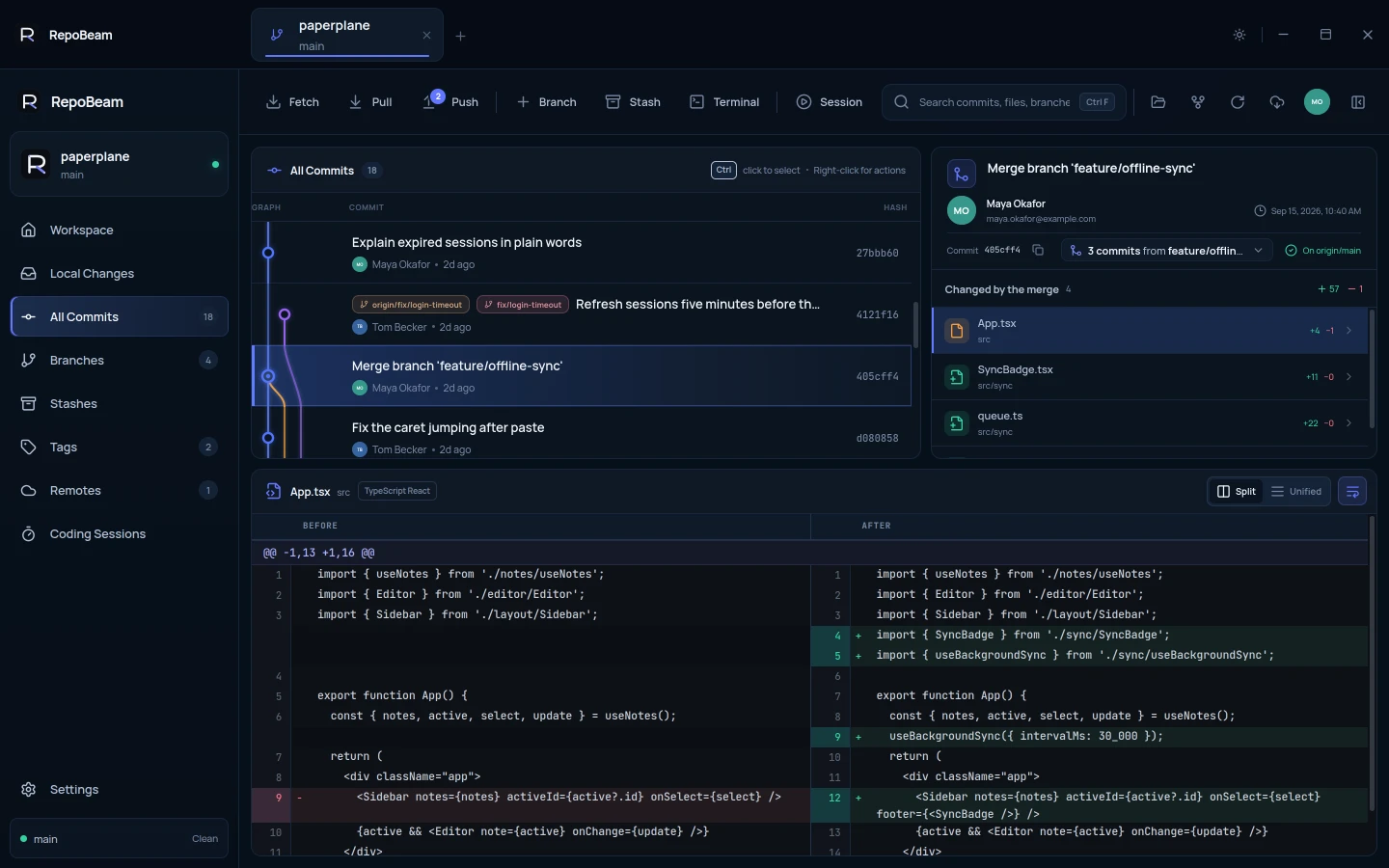
- The graph shows every branch and merge, with branch and tag labels on their commits.
- Commit details say whether a commit is already on the remote or not pushed yet.
- Merge commits list the commits they brought in and what the merge changed.
Step by step
-
Open All Commits
Pick All Commits in the sidebar. Each row shows the message, the author and when, and the lanes on the left show how branches split and merge.
-
Select a commit
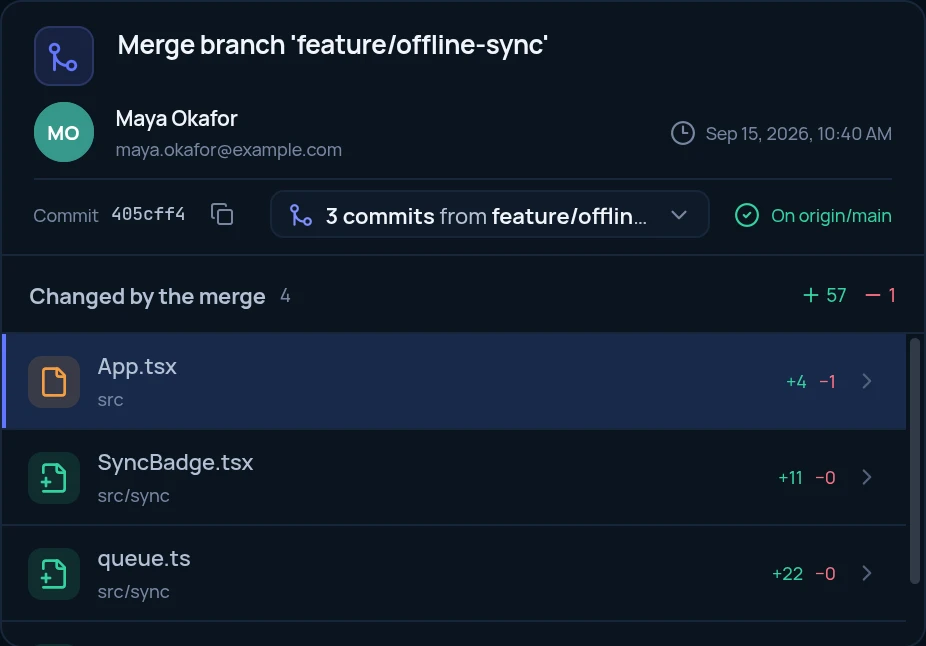
The details show the author, the date, the commit ID with a copy button, its parent, and whether it is On origin/main or Not pushed yet. Pick a file to see its diff, side by side or unified.
-
Understand a merge
A merge shows a button such as 3 commits from feature/offline-sync. Click it to list those commits. The files under Changed by the merge are compared with the branch the merge went into.
-
Act on a commit
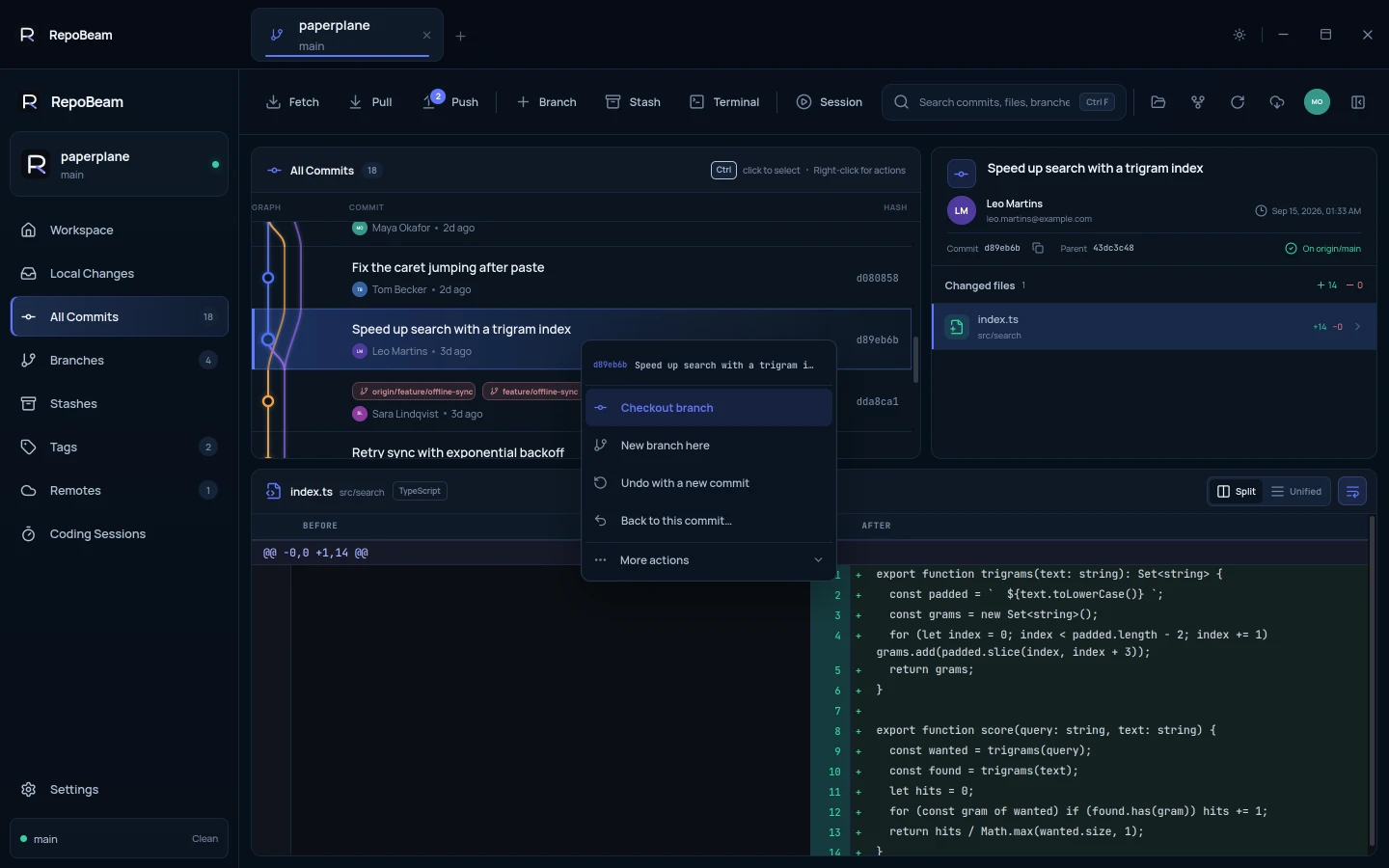
Right-click a commit for actions such as New branch here, Undo with a new commit and Back to this commit…. More actions has cherry-pick and tags. Anything that changes history opens a preview first.
Good to know
- Select several commitsCtrl-click commits to select more than one, for example to combine them.
- SearchPress Ctrl F to search commits, files and branches from the toolbar.