
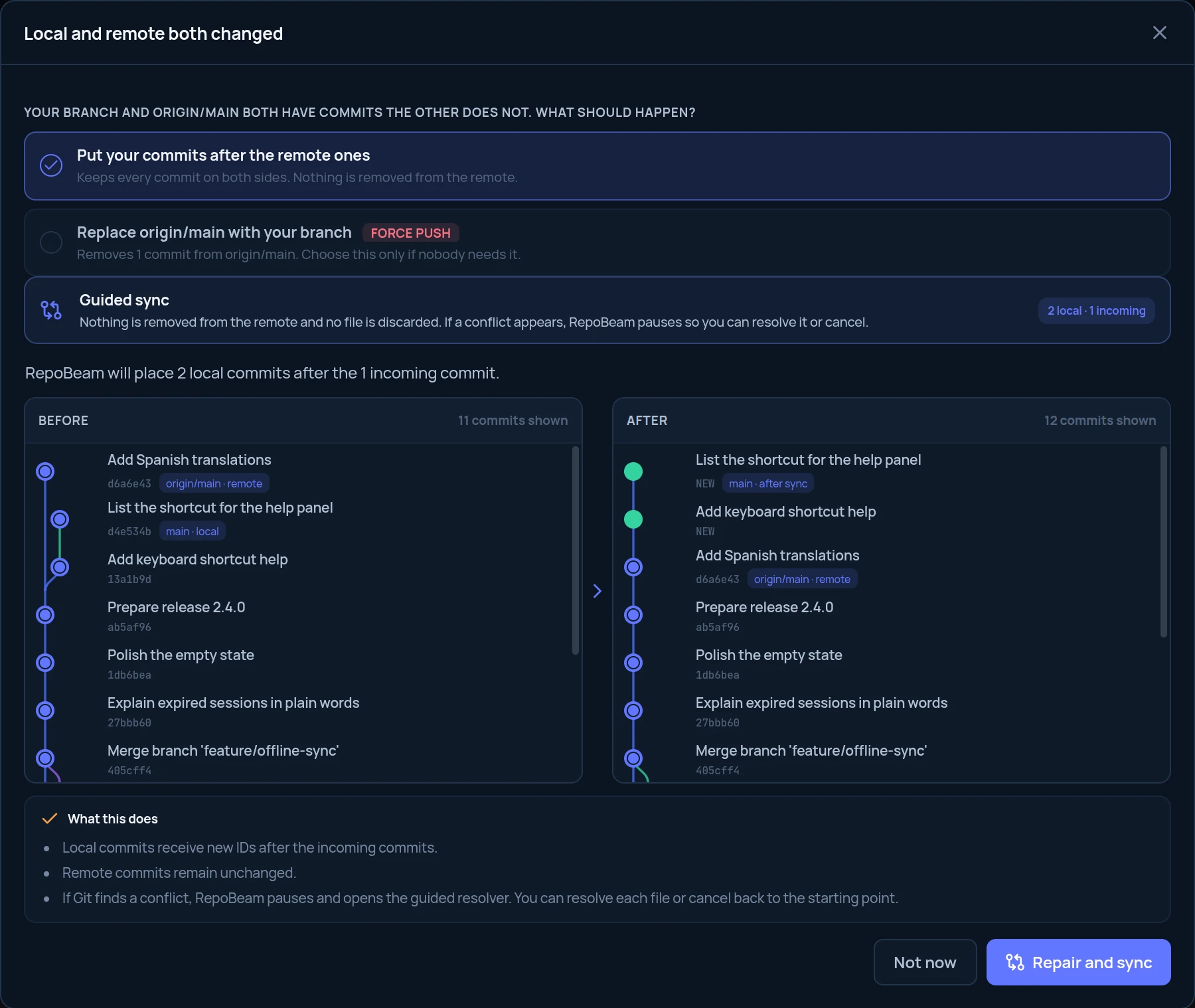
In short
- Fix sync appears in the toolbar when your branch and its remote have both moved.
- By default your commits are placed after the remote ones. Nothing is removed from the remote.
- After amending pushed commits, you can replace the remote instead, with every replaced commit named first.
Step by step
-
Click Fix sync
When both sides moved, the toolbar shows Fix sync with the number of commits involved.

-
Check the preview
Put your commits after the remote ones is selected. The Before and After graphs show where your commits will go.
-
Repair and sync
Click Repair and sync. Commits that are already on the remote are skipped. If Git needs a decision, the conflict resolver opens.
-
Push
When the branch is repaired, RepoBeam tells you how many commits are ready to push. Click Push.
Replacing the remote after amending
If you amended or combined commits you had already pushed, putting your commits after the remote ones would bring the old versions back. In that case choose Replace origin/main with your branch:
- RepoBeam lists every commit that will no longer be on the remote.
- On a branch that is usually shared, such as main, tick I understand before continuing.
- If anyone pushes before the replacement runs, RepoBeam stops and replaces nothing.
- The replaced commits are kept on your computer as a recovery point.
RepoBeam suggests replacing the remote only when your local commits look like rewritten versions of the remote ones.