
In short
- Commits you already pushed are never moved: their files come back as changes, or in a new commit.
- Work that only exists on your computer can move back, keeping newer changes if you want them.
- A private recovery point is saved before anything is rewritten.
Step by step
-
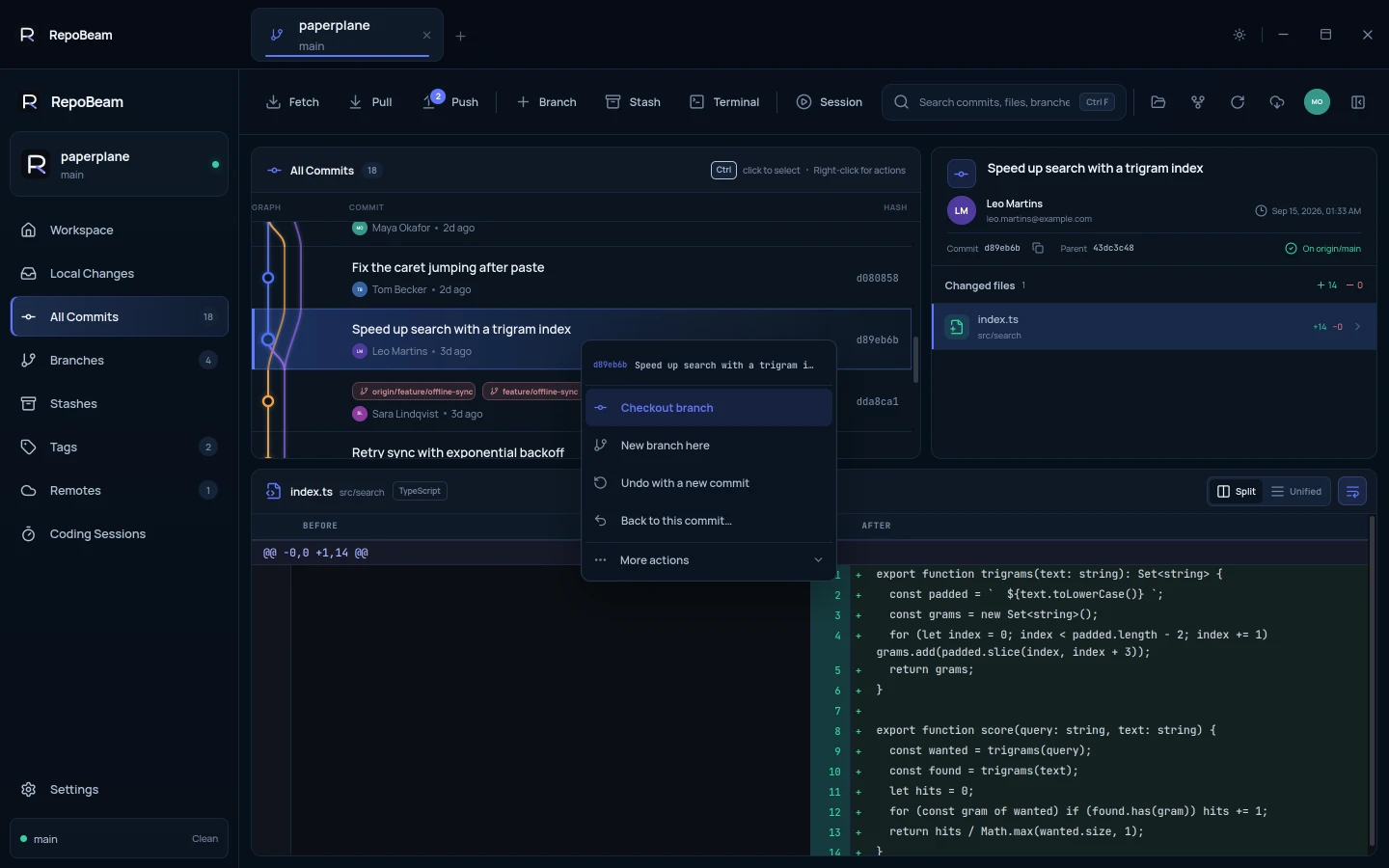
Right-click the commit
Open All Commits, right-click the commit you want to go back to, and choose Back to this commit…
-
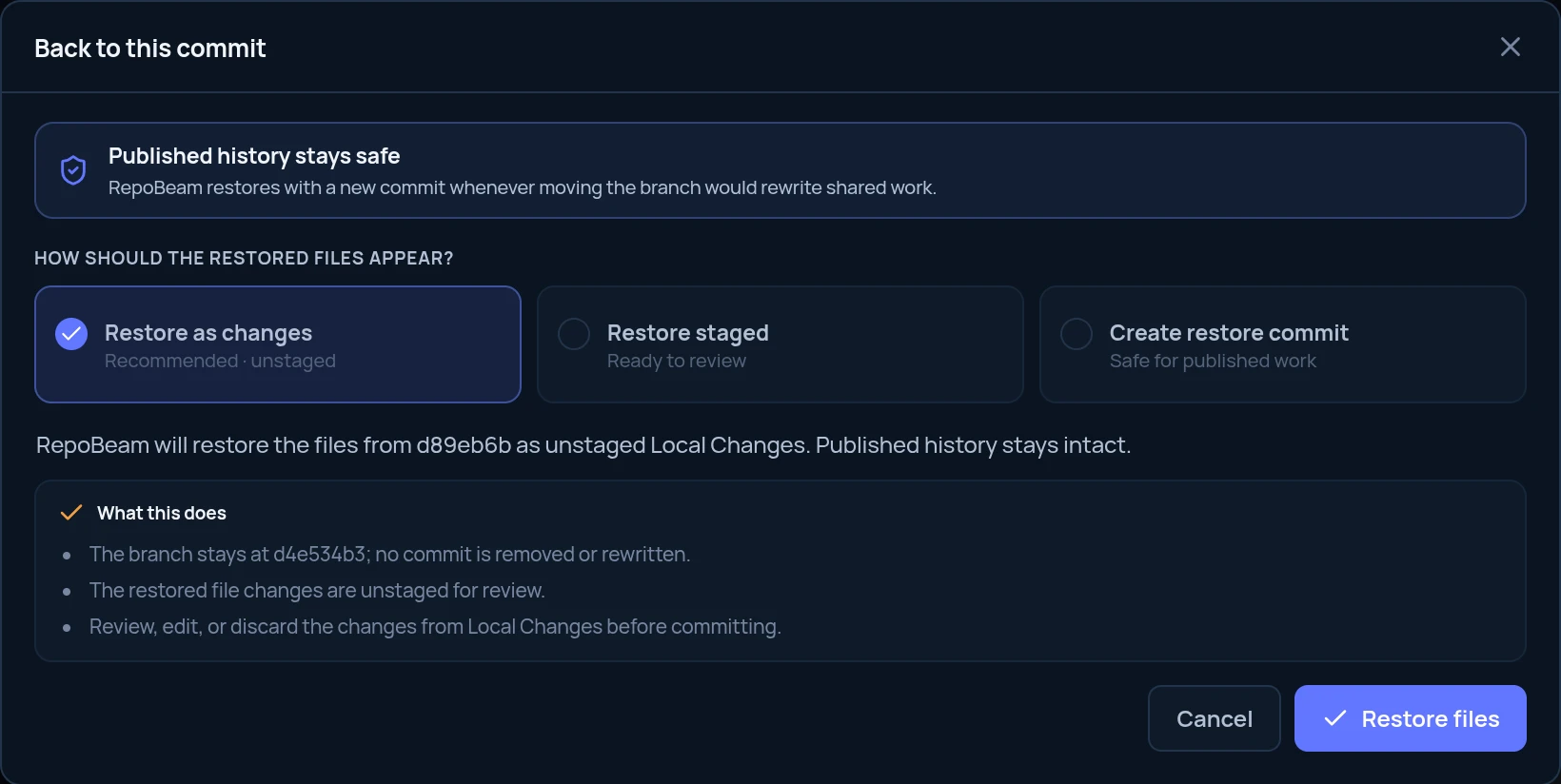
Choose how the result appears
The choices depend on whether the newer commits are already published. Both cases are explained below.
-
Check the preview and confirm
Read What this does, then confirm with Restore files, Create restore commit or Move branch back.
-
Push if you made a commit
A restore commit is an ordinary new commit. Push it like any other.
If the newer commits are already published
Moving the branch back would rewrite history that other people may already have, so RepoBeam offers:
- Restore as changes: the older files appear as unstaged Local Changes. The branch doesn’t move.
- Restore staged: the same, already staged.
- Create restore commit: a new commit whose files match the older commit. Existing commits stay in history.
If the newer commits are only on your computer
RepoBeam can move the branch back. You choose what happens to the newer work:
- Keep as changes: the newer work stays as unstaged changes.
- Keep staged: the newer work stays staged.
- Discard file changes: the files match the older commit exactly.
Only want to undo one commit and keep everything after it? Right-click it and choose Undo with a new commit instead.