See what Git will do. Before it does it.
RepoBeam previews history-changing actions, guides conflicts in plain language, and keeps AI-assisted work on a dedicated review branch until you accept it.
01 Before/After previews
Know the outcome
before you run the action.
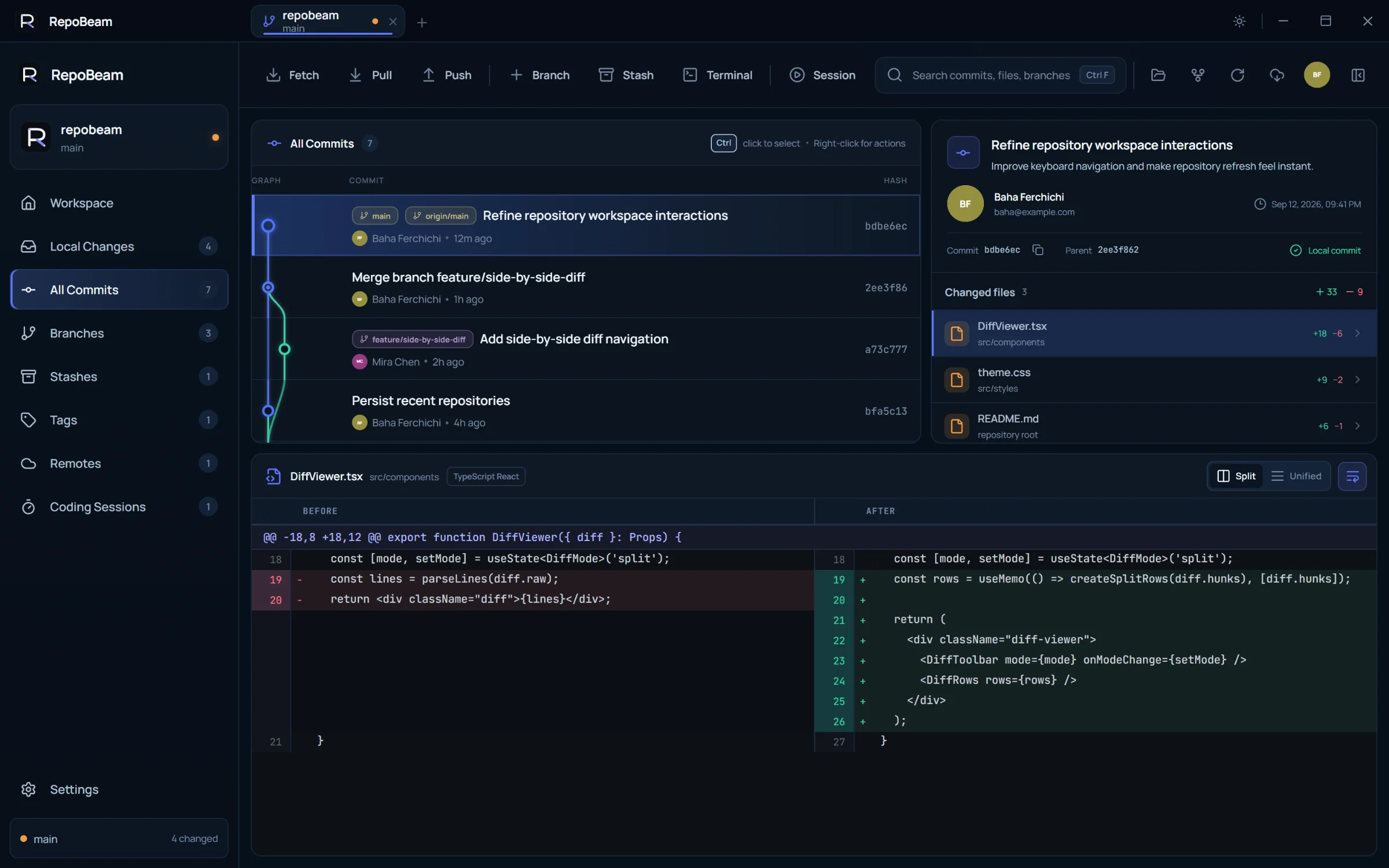
When an action changes history, RepoBeam reads your repository’s commit graph and shows it as it is now and as it is expected to look afterwards, with a list of what changes. Nothing happens until you confirm.
$ git reset --hard a73c777
git push --force# rewrites commits that others may already have pulled
In RepoBeam
Right-click a commit → Back to this commit… → Create restore commit
The commit is already published, so RepoBeam restores its files with a new commit instead of moving the branch.
Before
- Refine workspace interactions
bdbe6ecmain · origin/main - Merge feature/side-by-side-diff
2ee3f86 - Add side-by-side diff navigation
a73c777snapshot to restore - Persist recent repositories
bfa5c13
After
- Restore project to a73c777
NEWmain · new tip - Refine workspace interactions
bdbe6ecorigin/main - Merge feature/side-by-side-diff
2ee3f86 - Add side-by-side diff navigation
a73c777
- Existing published commits remain in history.
- The new restore commit can be pushed normally.
- Recovery point firstMoving a branch back or combining commits creates a private recovery point before anything is rewritten.
- Published work isn’t rewrittenRepoBeam avoids rewriting published history by default and restores with a new commit instead.
- Diverged branch repairFix sync shows how local and remote commits are expected to line up, skips duplicates and keeps local work.
- Actions named by what they doRight-click a commit for actions like Undo with a new commit or Back to this commit.
An interactive illustration of the preview dialog. How Back to this commit works →
02 Guided conflict resolution
Understand both versions.
Then choose the final file.
When a merge, rebase, cherry-pick or revert stops on a conflict, RepoBeam shows both versions side by side with a short explanation of where each came from. Keep one, keep both, or write the result yourself — then continue or cancel without leaving the app.
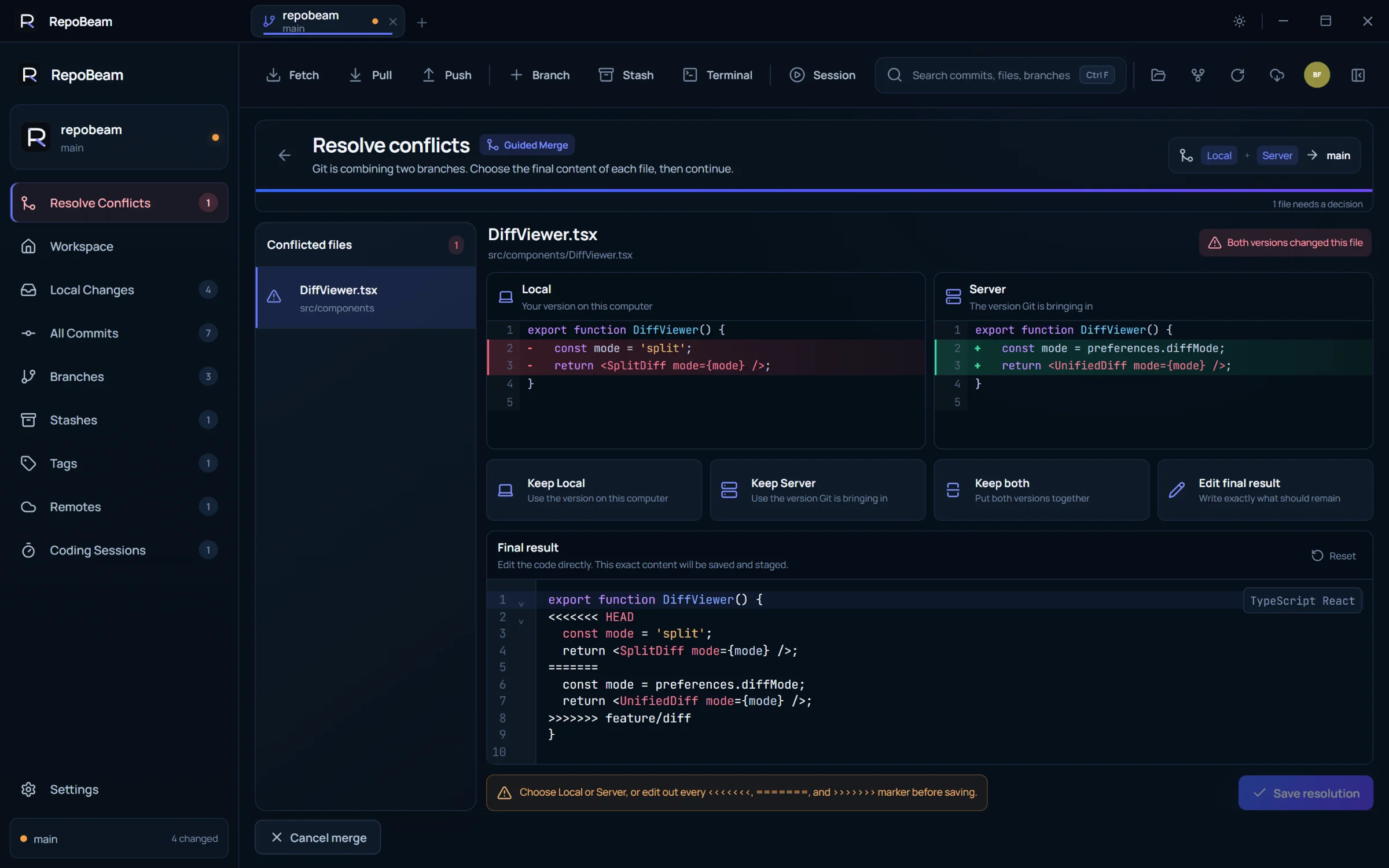
- 1Both versions, explained
Each side is labelled with a short description of where it came from.
- 2Choose or combine
Keep either version, or both, with one click.
- 3Edit the final result
A syntax-highlighted editor. What you see is exactly what gets saved and staged.
- 4Validation before saving
A file can’t be saved while conflict markers remain.
- 5Continue or cancel
Finish the operation, or cancel it and return the branch to where it started.
03 Coding Sessions
Review AI‑assisted work
before it reaches your branch.
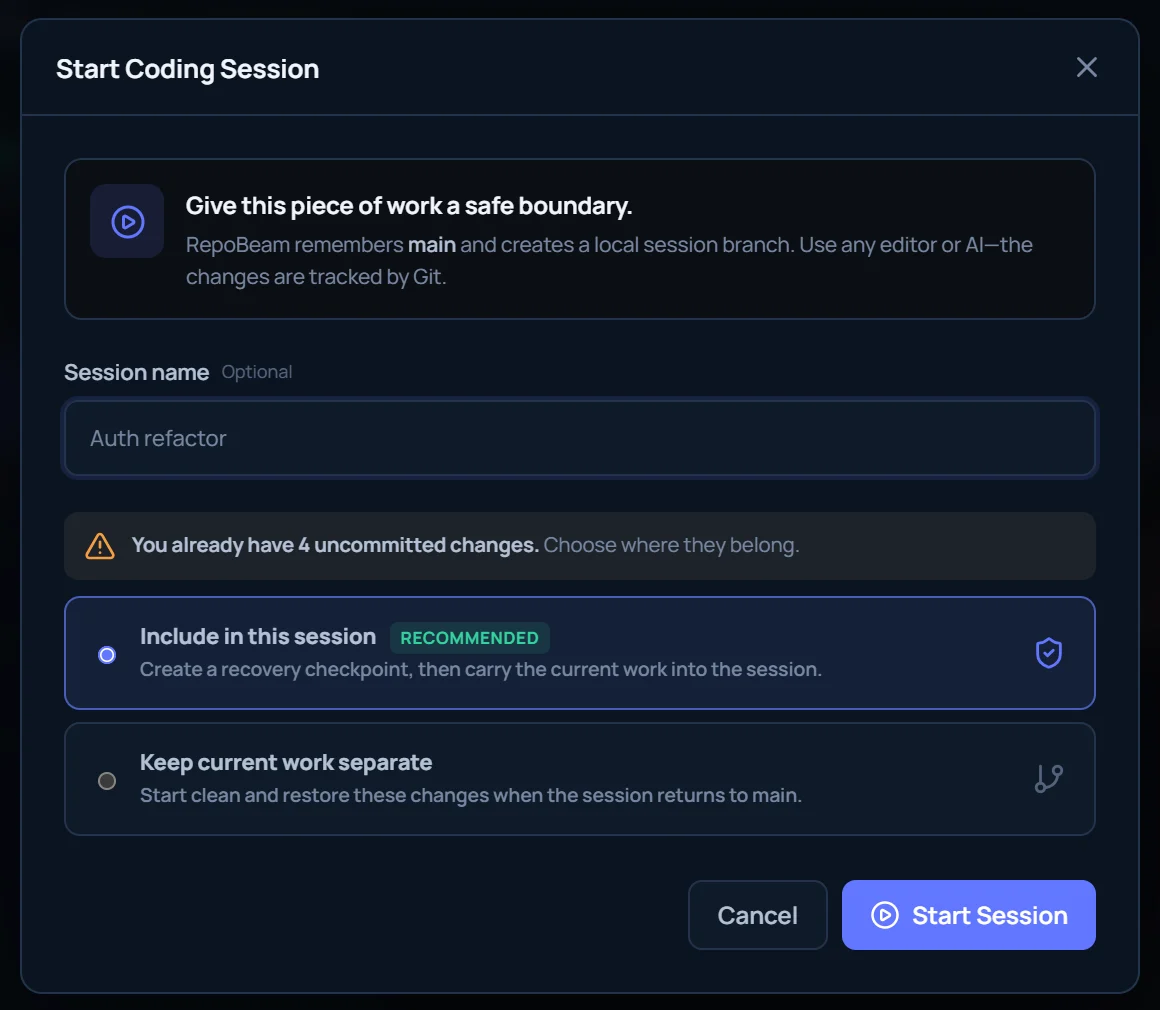
Start a Coding Session before an agent or editor changes your code. RepoBeam keeps the work on a dedicated session branch, lets you review every changed file, and applies only what you accept.
- Start a sessionRepoBeam records your branch and commit and creates
repobeam/session/…. Uncommitted work can come along or stay separate. - Work as usualUse Claude Code, Codex, Cursor, Copilot or your own editor. RepoBeam tracks what changes.
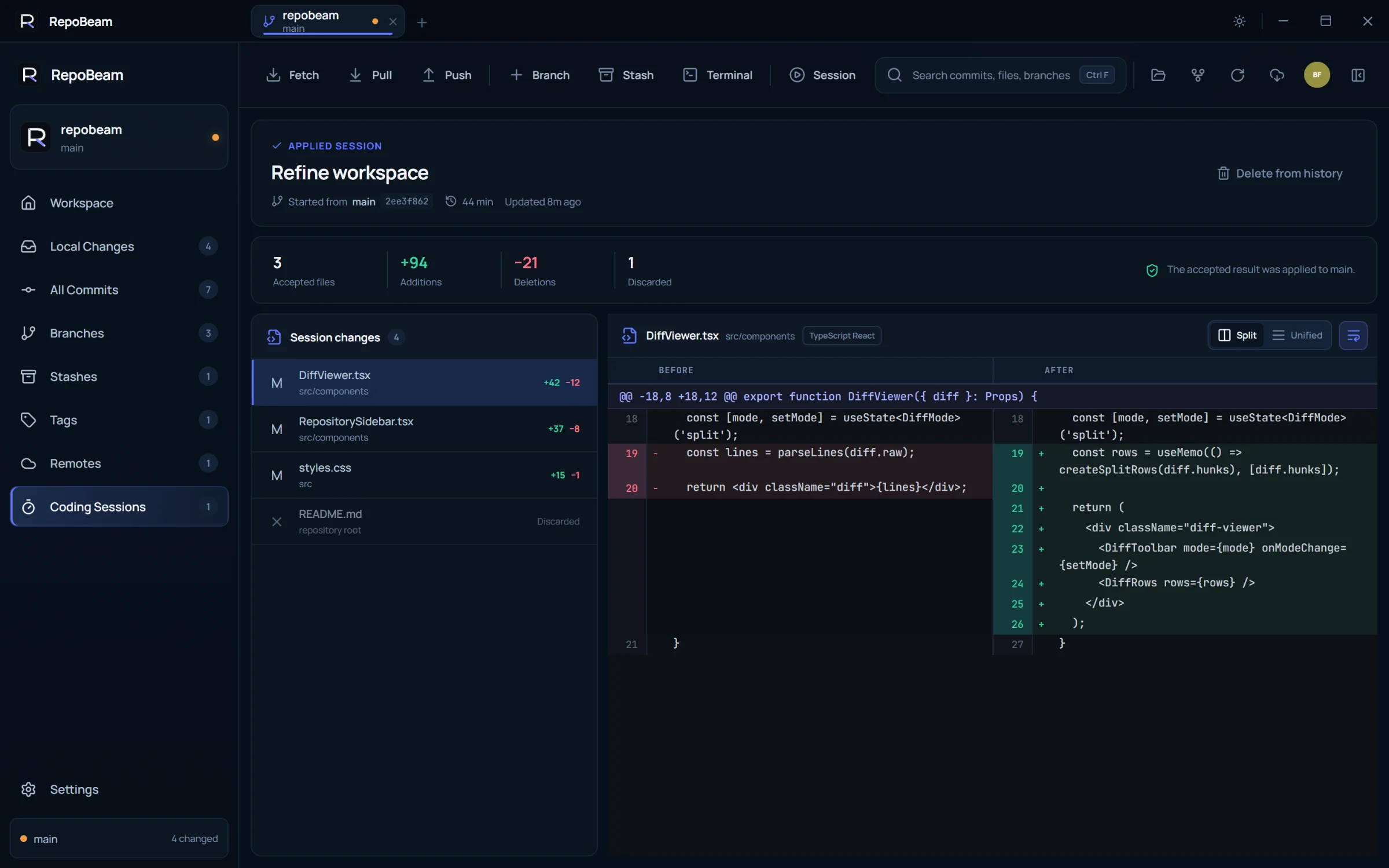
- Review file by fileRead each diff and discard files you don’t want. A recovery snapshot is taken first.
- Apply or mergeBring accepted work back as uncommitted changes for a final look, or merge the session. Then delete the session branch.
A session is a Git review workflow, not a security sandbox. Agents and editors still run with your normal permissions.
04 Everyday work
Your everyday Git workflow,
without the context switching.
Everything you expect from a daily Git client is here: branches, commits, stashes, tags, remotes, diffs, terminal access, and Windows and Linux support.
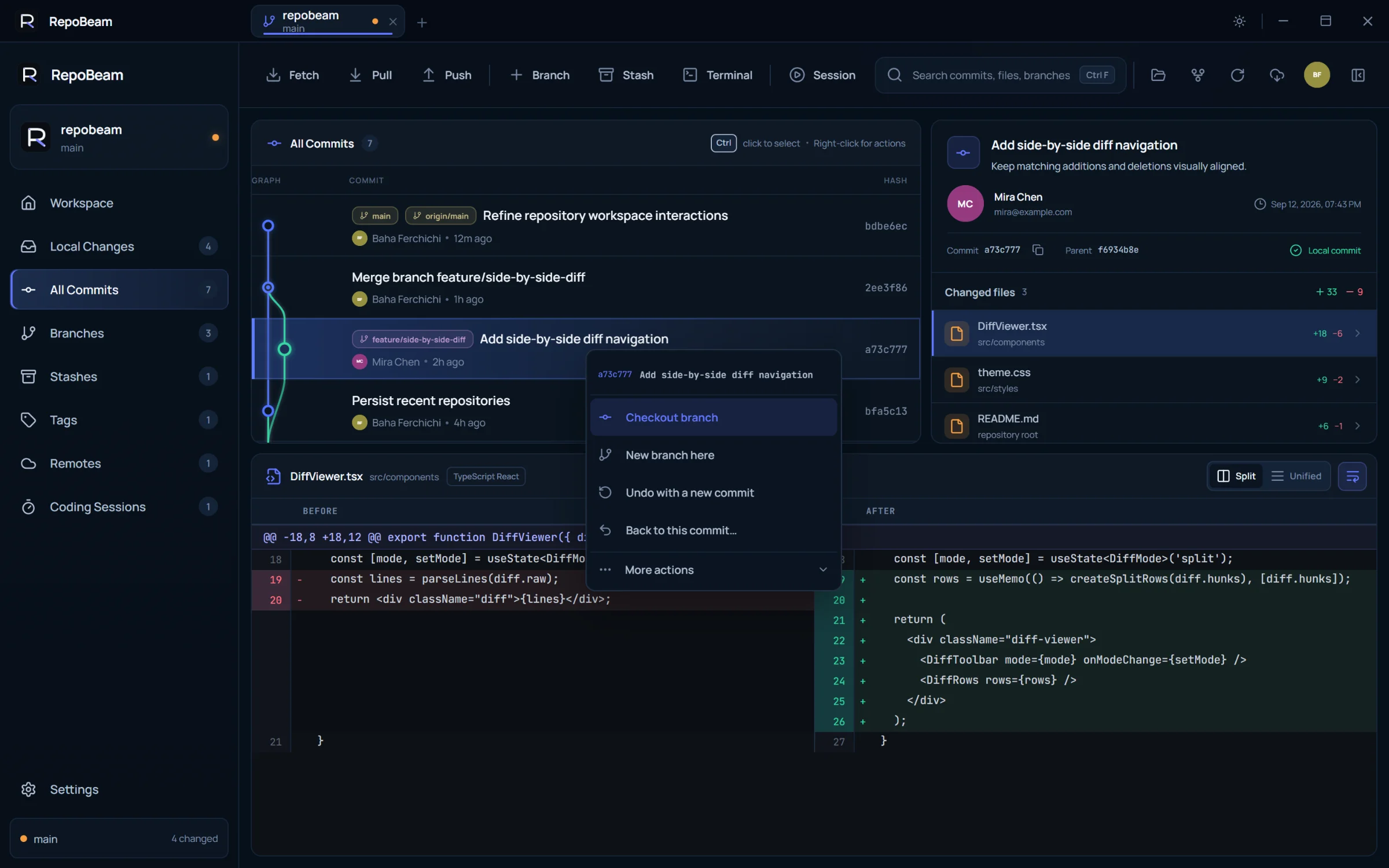
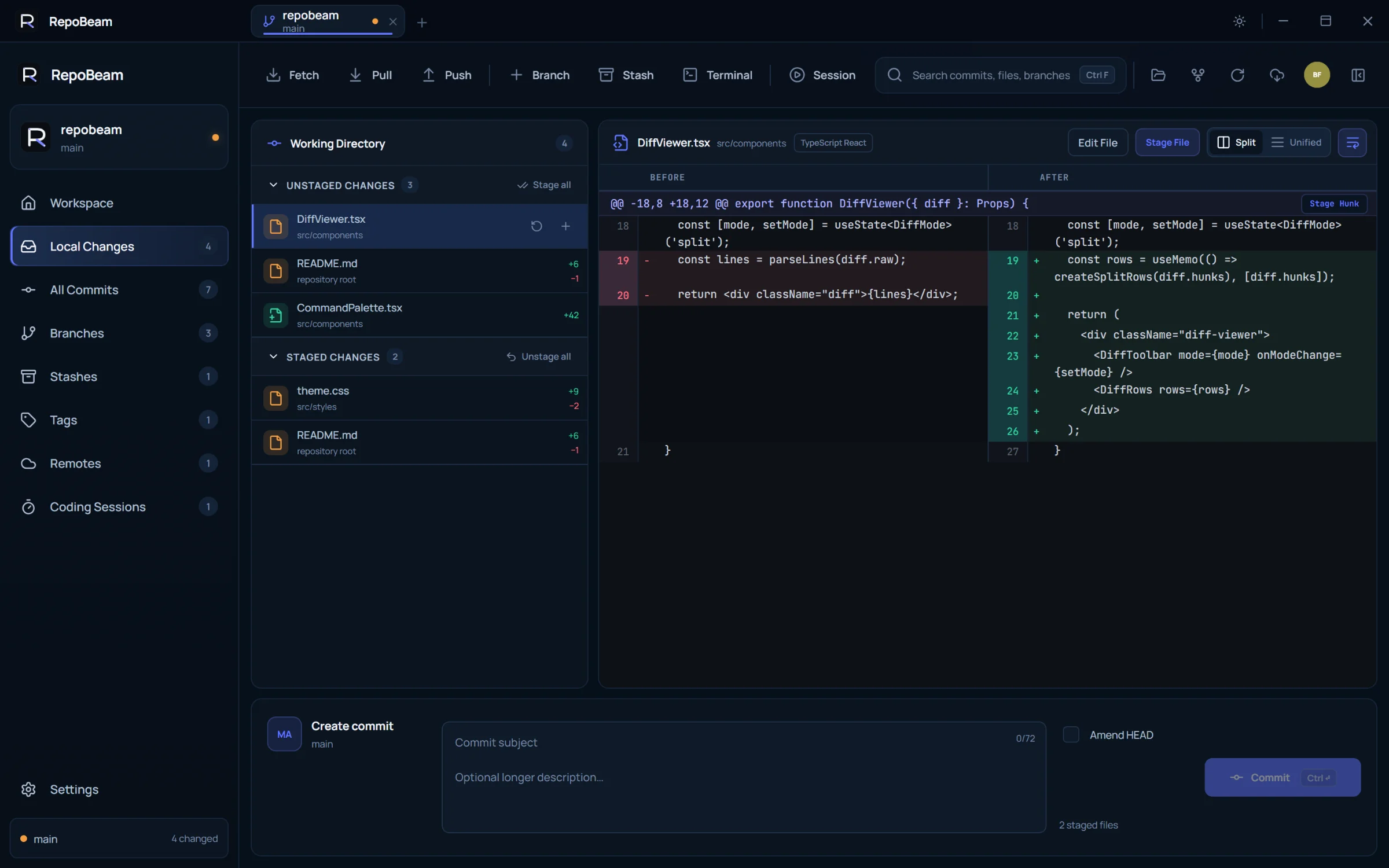
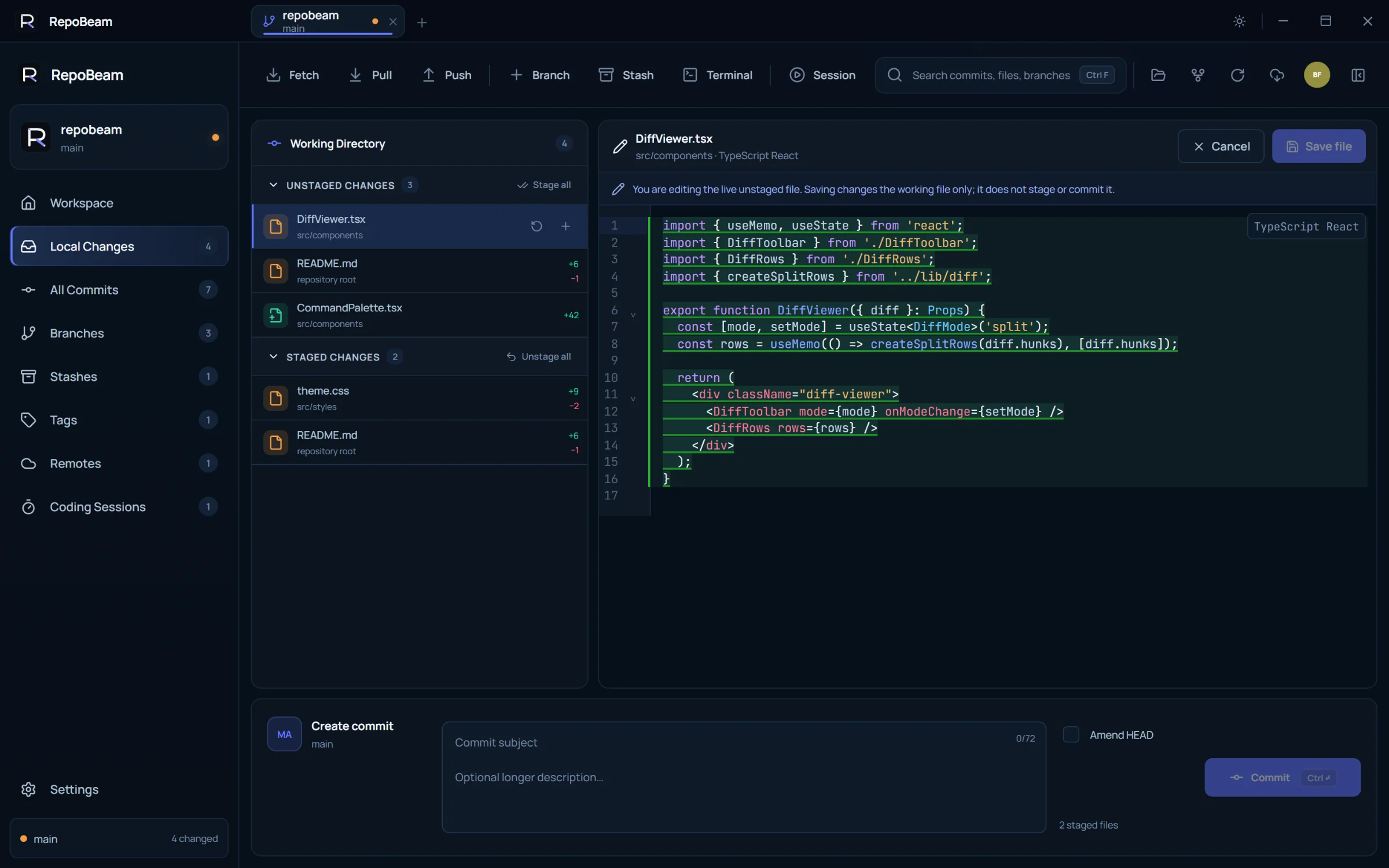
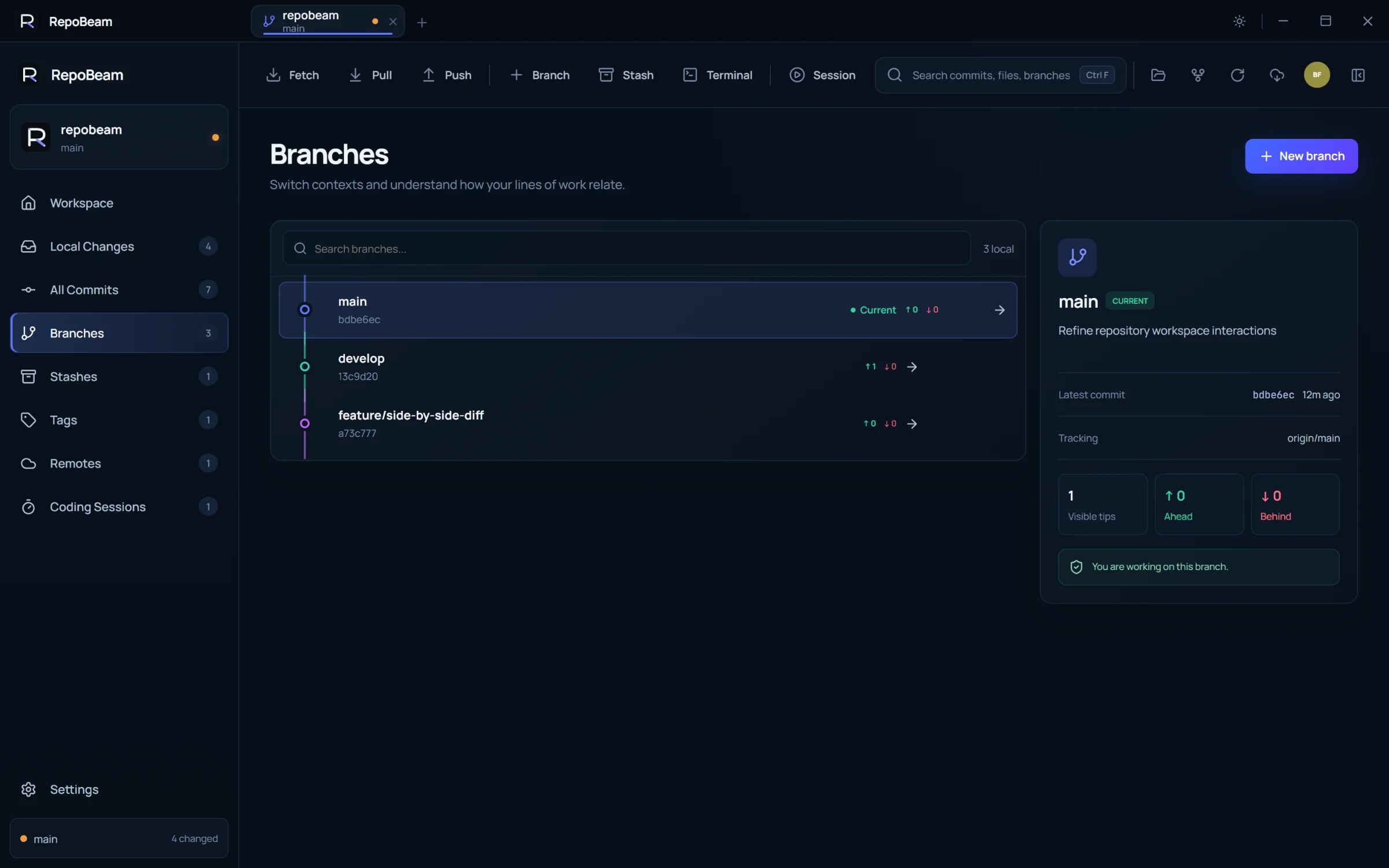
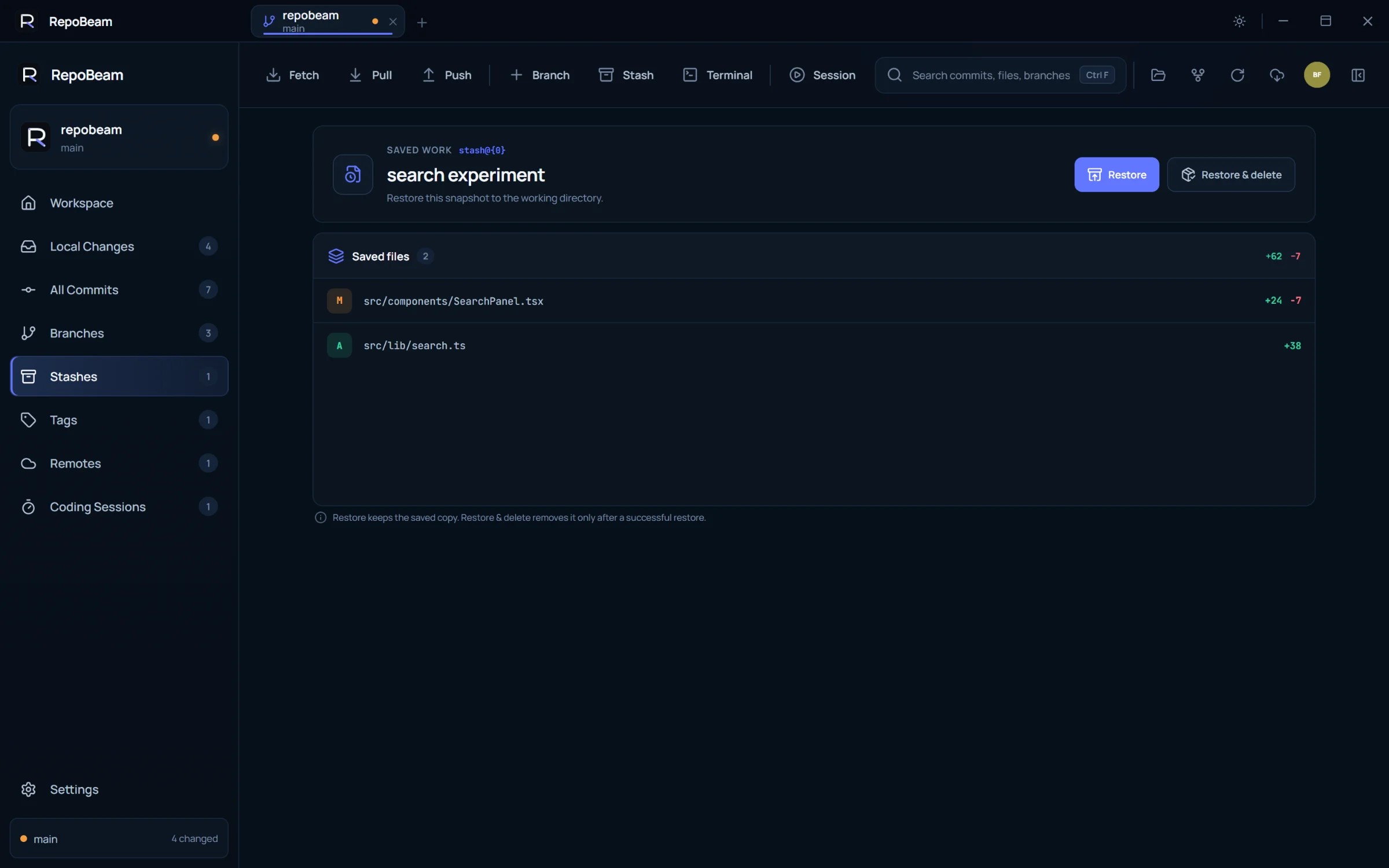
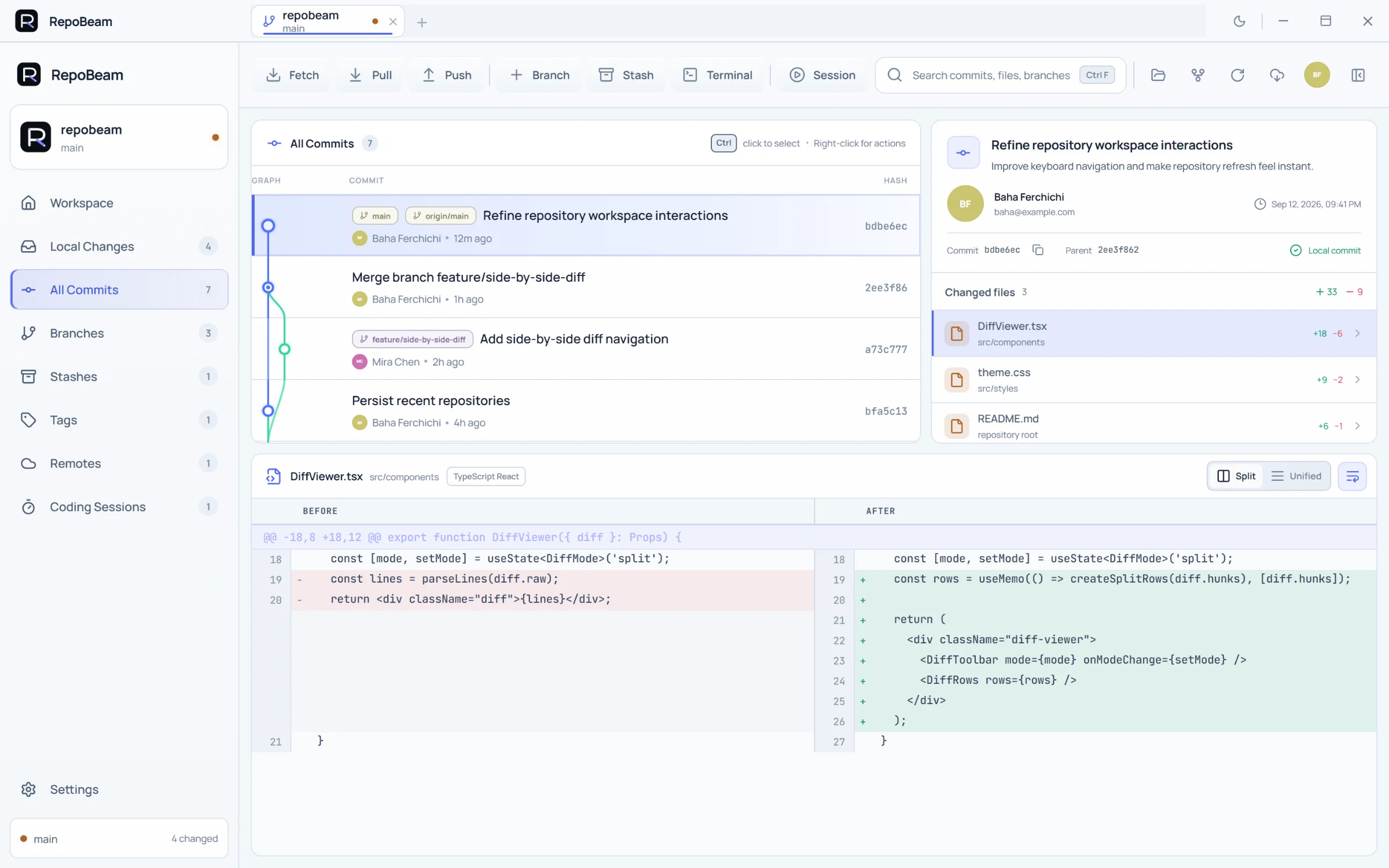
Also included: precise staging, code and image diffs, repository tabs, light and dark themes, and in-app updates.

The hard moments in Git,
made understandable.
Free for Windows and Linux. Open an existing repository — no import and no RepoBeam account.
- The Windows, .deb and AppImage versions use the Git, SSH agent and credential helpers already on your computer. The snap includes its own Git.
- RepoBeam doesn’t upload your repositories to RepoBeam servers. Git only talks to the remotes you configure. Privacy

Other Linux packages .deb · AppImage
These use the Git, SSH agent and credential helpers already on your computer, and need git installed. Choose them if your Git hooks run tools such as Node, or your repositories are outside your home folder.
Needs Git: Git for Windows on Windows. The snap includes Git and opens repositories in your home folder and on removable drives.
FAQ
Questions,
answered.
Does RepoBeam replace Git?
No. RepoBeam runs Git itself: the copy installed on your computer, or the copy included in the snap. Your repository stays a normal Git repository that you can keep using from the terminal or any other tool.
Does RepoBeam upload my code?
No. RepoBeam has no account, no telemetry and no servers that receive your repositories. Git only communicates with the remotes you configure, such as GitHub or GitLab, and update checks read RepoBeam’s public releases on GitHub. The privacy page has the details.
Is a Coding Session a sandbox?
No. A session is a dedicated Git branch plus a review workflow. Agents and editors still run with your normal permissions and can read files, run commands or use the network. The session tracks what changes in the repository so you can review it before accepting.
What if I change my mind after rewriting history?
Moving a branch back and combining commits create a private recovery point first, and discarding a file from a Coding Session takes a recovery snapshot. RepoBeam also avoids rewriting published commits by default.
Is it free, and what do I need?
RepoBeam is free to download. On Windows, you need 64-bit Windows 10 or 11 with Git for Windows. On Linux, install the snap, which includes Git, or use the .deb (Ubuntu and Debian-based distributions) or the AppImage with Git installed. All builds are 64-bit.